

Description
Download Webcam and Screen Recorder – Free, Secure & Lightweight Video Capture Tool for Windows
Webcam and Screen Recorder is a compact yet powerful video capture application designed for Windows users who need a reliable way to record their screen and webcam simultaneously. This lightweight software offers a simple interface and minimal system requirements, making it ideal for users with older or low-spec machines. Whether you're creating online tutorials, recording video calls, streaming gameplay, or capturing presentations, this tool delivers solid performance without overwhelming your system. Despite its age—last updated in 2006—Webcam and Screen Recorder remains a favorite among users in Germany, the UK, and Australia due to its ease of use and consistent functionality. With support for multiple video formats and codecs, it ensures compatibility with most media players and editing software. The software is completely free to download and use, with no hidden costs or trial limitations. It's a trusted choice for educators, content creators, and remote workers looking for a no-frills video recording solution.
Key Features of Webcam and Screen Recorder
Webcam and Screen Recorder stands out in the crowded field of video capture tools thanks to its straightforward yet effective feature set. One of its most valuable capabilities is the ability to record both your webcam feed and screen activity simultaneously—perfect for creating engaging tutorial videos or professional video resumes. The software supports real-time recording with audio input, allowing you to capture voiceovers, system sounds, or microphone input seamlessly. It’s also compatible with a wide range of video formats, including AVI, WMV, and others, ensuring your recordings are accessible across devices and platforms.
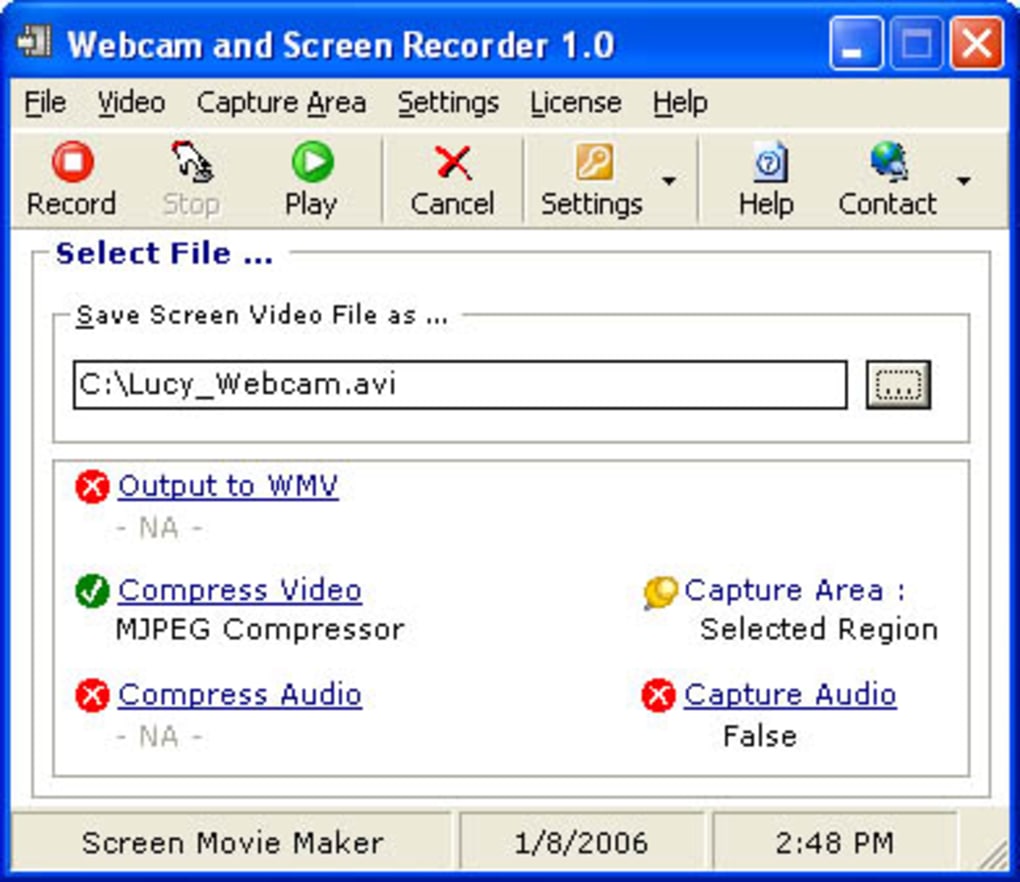
Another standout feature is its minimal system footprint. Unlike modern recording tools that demand high RAM and CPU usage, Webcam and Screen Recorder runs efficiently on older Windows systems like Windows 98 and earlier. This makes it an excellent option for users who still rely on legacy hardware or prefer lightweight software. The interface is clean and intuitive, with clearly labeled buttons for start, stop, and settings adjustments—ideal for beginners who aren’t tech-savvy. Additionally, the software allows users to select specific screen regions for recording, giving you full control over what gets captured.
For educators and remote professionals, the ability to record live lectures, webinars, or virtual meetings without complex setup is a major plus. The tool also supports network video capture, expanding its utility beyond local devices. While it lacks modern features like real-time editing or cloud sharing, its core functionality remains robust and dependable. Whether you’re documenting a software demo, recording a gaming session, or capturing a Zoom call, Webcam and Screen Recorder provides a hassle-free experience with minimal configuration.
How to Install and Use Webcam and Screen Recorder on Windows
Installing Webcam and Screen Recorder is a straightforward process, especially for users familiar with older Windows versions. First, visit the official download page and click the free download link. The installer is small in size—typically under 10 MB—so it downloads quickly even on slow connections. Once downloaded, run the executable file and follow the on-screen prompts. Since the software supports Windows 98 and earlier, it’s important to ensure your system meets these minimum requirements before proceeding.
After installation, launch the application. The main window displays a simple layout with options to select your webcam, choose a recording area on the screen, and configure audio sources. You can choose between system audio, microphone input, or both. Click the “Start Recording” button to begin capturing. A small overlay will appear during recording, showing the current status and elapsed time. To stop, simply click “Stop” or press a designated hotkey (if configured).
Once recording is complete, the video file is saved automatically to your chosen folder. The default format is AVI, but you can adjust this in the settings. For users who want to edit their recordings, the output is compatible with most video editing tools, including Windows Movie Maker and other basic editors. The software also includes basic settings like frame rate and resolution adjustments, allowing you to balance quality and file size. Despite its age, the user experience remains smooth and intuitive, making it a great option for users who value simplicity over advanced features.
Compatibility and System Requirements
Webcam and Screen Recorder is specifically designed for older Windows operating systems, including Windows 98, ME, 2000, and XP. This makes it a unique choice for users still running legacy systems or those who prefer minimal software with low resource consumption. While it doesn’t support modern platforms like Windows 11 or Windows 10, its compatibility with older systems ensures it remains functional on machines that might struggle with newer, more demanding software.
System requirements are exceptionally low. The software runs on machines with as little as 64 MB of RAM and a basic processor. This makes it perfect for older laptops, desktops, or even netbooks that are no longer suitable for modern applications. It doesn’t require a dedicated graphics card, which further reduces hardware demands. The software also works with standard webcams and built-in microphones, so no additional hardware is needed to get started.
Despite its age, Webcam and Screen Recorder maintains solid compatibility with a wide range of video codecs, ensuring your recordings play back smoothly on most devices. It’s particularly useful for users in educational institutions or small businesses that maintain older hardware for cost-saving reasons. While it lacks support for Android, iOS, or Mac, it remains a dependable tool for Windows users seeking a no-nonsense recording solution. For those needing cross-platform functionality, alternatives like OBS Studio or Camtasia may be better suited, but for Windows 98 and early XP users, this software is still a viable option.
Pros and Cons of Webcam and Screen Recorder
- Pros:
- Extremely lightweight and runs on older systems (Windows 98 and earlier)
- Free to download and use with no trial limitations
- Simple, intuitive interface ideal for beginners
- Records both screen and webcam simultaneously
- Supports multiple video formats and codecs
- Low system resource usage ensures smooth performance
- Cons:
- Not compatible with modern Windows versions (10, 11)
- Last updated in 2006—no recent bug fixes or security patches
- Lacks advanced features like real-time editing, effects, or cloud sharing
- No support for Mac, Android, or iOS devices
- Interface is outdated and may feel unfamiliar to new users
Final Verdict: Is Webcam and Screen Recorder Still Worth It?
Despite being over 15 years old, Webcam and Screen Recorder continues to serve a niche audience—particularly those using legacy Windows systems or seeking a no-frills recording tool. Its lightweight design, free access, and dual recording capability make it a reliable choice for basic video capture needs. While it lacks modern features and security updates, its core functionality remains intact and effective.
If you're running Windows 98, ME, 2000, or XP and need to record screen and webcam footage for tutorials, lectures, or personal use, this software is worth downloading. However, users on modern systems should consider alternatives like OBS Studio, Camtasia, or Microsoft’s built-in Game Bar for better performance, security, and feature sets.
CTA: Download Webcam and Screen Recorder for free today and start recording your screen and webcam with ease—perfect for legacy systems and simple video capture tasks.
Frequently Asked Questions (FAQ)
-
Is Webcam and Screen Recorder free to use?
Yes, Webcam and Screen Recorder is completely free to download and use. There are no trial periods or hidden costs. The software has been available at no charge since its release.
-
What operating systems does it support?
The software is compatible with Windows 98, Windows ME, Windows 2000, and Windows XP. It does not support Windows 10, Windows 11, Mac, Android, or iOS.
-
Can I record both my screen and webcam at the same time?
Yes, one of the main features of Webcam and Screen Recorder is the ability to record your screen and webcam simultaneously, making it ideal for creating video tutorials or online presentations.
-
What video formats does it support?
The software supports common formats like AVI and WMV. The output files are compatible with most media players and basic video editing software.
-
Is the software secure to download?
While the software is free and widely used, it hasn’t been updated since 2006. For security, it’s recommended to download from trusted sources and use it only on isolated or older systems where risk is minimized.
Yes, Webcam and Screen Recorder is completely free to download and use. There are no trial periods or hidden costs. The software has been available at no charge since its release.
The software is compatible with Windows 98, Windows ME, Windows 2000, and Windows XP. It does not support Windows 10, Windows 11, Mac, Android, or iOS.
Yes, one of the main features of Webcam and Screen Recorder is the ability to record your screen and webcam simultaneously, making it ideal for creating video tutorials or online presentations.
The software supports common formats like AVI and WMV. The output files are compatible with most media players and basic video editing software.
While the software is free and widely used, it hasn’t been updated since 2006. For security, it’s recommended to download from trusted sources and use it only on isolated or older systems where risk is minimized.
Guides & Tutorials for Webcam and Screen Recorder
How to install Webcam and Screen Recorder
- Click the Preview / Download button above.
- Once redirected, accept the terms and click Install.
- Wait for the Webcam and Screen Recorder download to finish on your device.
How to use Webcam and Screen Recorder
This software is primarily used for its core features described above. Open the app after installation to explore its capabilities.
User Reviews for Webcam and Screen Recorder 0
No reviews found





